Installing Grain with AS400
1. Create a new application
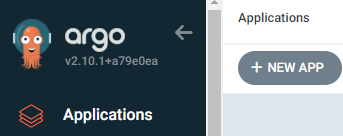
From the ArgoCD Web UI, select Applications on the left side menu, and then click on the + NEW APP button
2. App Metadata
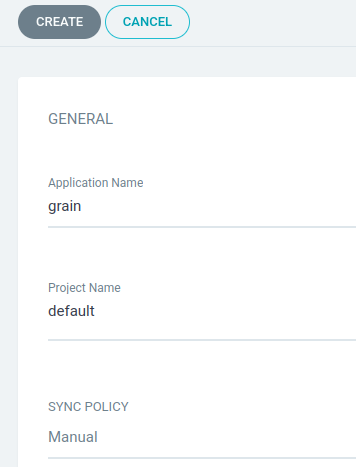
Fill out the GENERAL form:
- give a name to this Grain deployment. It's suggested to use lowercase kebab-case such as
grain-devorstaging-customer- - use the project
default - leave the sync policy as Manual
3. App Source
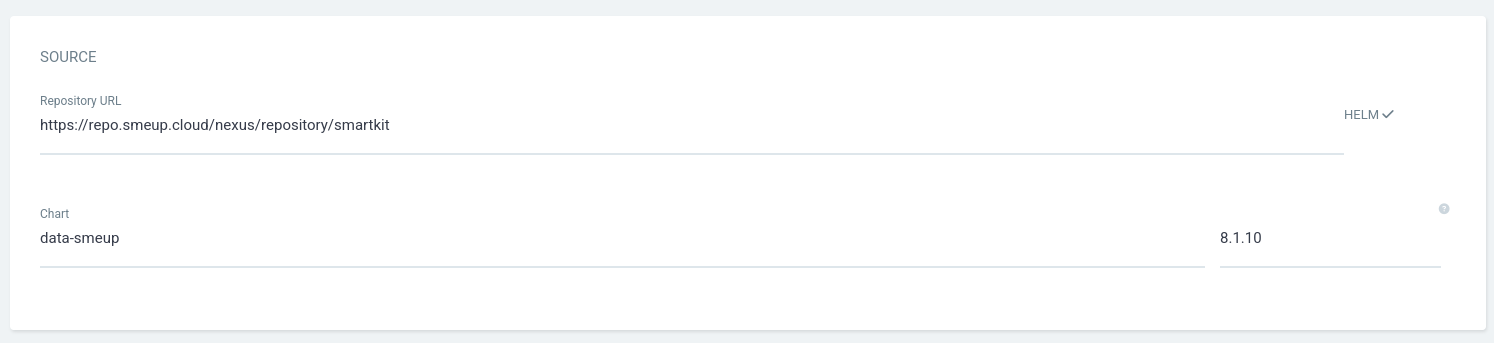
Fill out the SOURCE form:
- select the only
Repository URLfrom the dropdown menu - select the Chart
data-smeup - choose the version of Grain you want to deploy. It is highly recommended to deploy the latest release
Pre-release versions such as x.x.x-alpha.x are experimental and should be avoided unless you know what you're doing.
4. App Destination
Fill out the DESTINATION form:
- select the only
Cluster URLfrom the dropdown menu (https://kubernetes.default.svc) - type
defaultas the chosen Namespace to deploy Grain

5. Grain Configuration
Grain is configured from VALUES input panel inside the Helm section.
The below configurations are just an example for a Grain deployment with WebupJS.
To see advanced Grain configurations, look at the configuration docs.
kokos:
  dispatcher:
    apps:
      apps:
        my-app: # The name that you see in WebupJS login screen, also used on path with RestAPI
          libs:
            - "kokos-dsl-smeup"
          authentication:
            customAuthentication:
              enabled: true
              serviceName: WE_110_04
              serviceParams: ENVIRONMENT(XXX) CCSID(1144) # Change environment with effective environment name on AS400
          description: "My Grain environment"
          otherConfigs:
            THEME: corporate

  dam:
    shares:
    #  - name: share1
    #    device: example.com/share or x.x.x.x/share
    #    user: user1
    #    password: pwd1
    #    domain: domain1
    #    alias: [custom.domain/smeup]
    #    additionalMountParams: []
    #    smbVersion: "3.0"

  meJavaAs400Proxy:
    server: ""   # IBM i DNS name or DNS address
    username: "" # Service user used for IBM i connection
    password: "" # Service user's password
    environment: ""   # IBM i default environment
Finally, paste the YAML configs into the VALUES form inside the ArgoCD Web UI and click the CREATE button in the top side of the UI.
6. Sync (Deploy) Grain
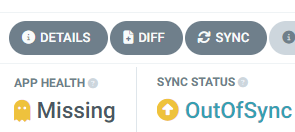
After creating the Grain application, it will have Missing app health and an OutOfSync status. To sync (deploy) Grain, click on the SYNC button
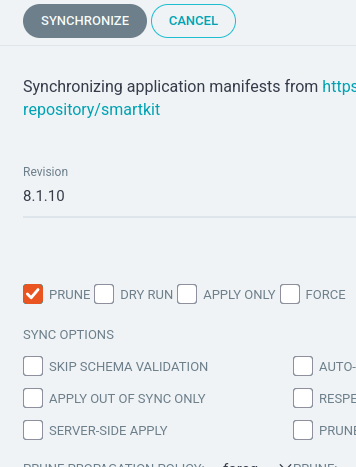
From the sync menu, make sure to check the PRUNE option and click SYNCHRONIZE
ArgoCD will start deploying Data. The process may take a few minutes during the first installation, since all the container images need to be pulled from scratch.
You can check the status of the installation from the APP HEALTH indicator. It will change from Progressing to Healthy once the installation is done.
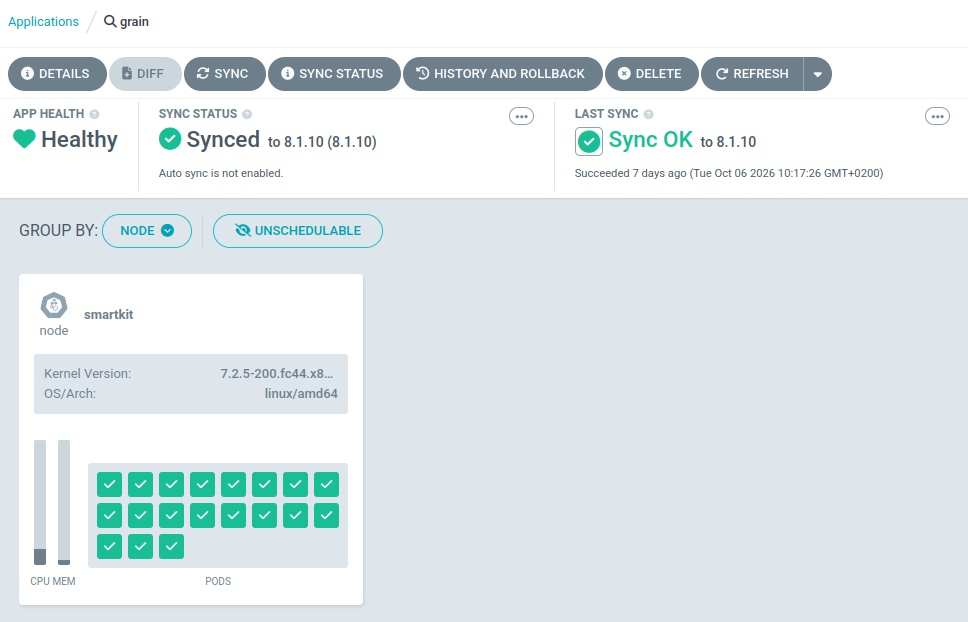
Congratulations, you've successfully installed Grain through AHD! 🎉